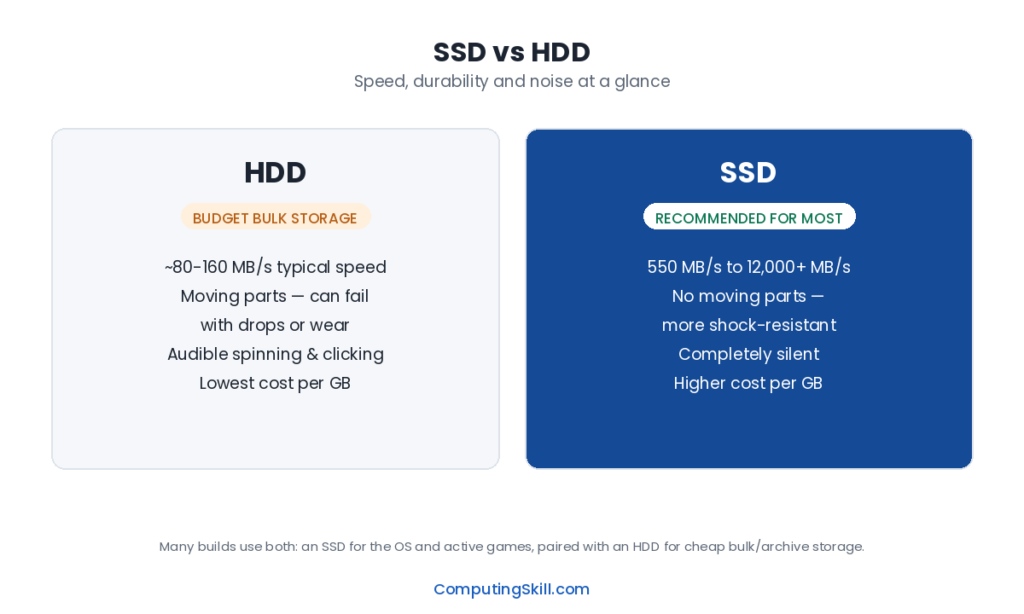
SSDs have replaced HDDs as the default storage choice for operating systems and games, but hard drives haven’t disappeared — they’re still the cheapest way to store large amounts of data. The right answer depends heavily on what you’re storing and how you access it, not just which technology is “better” in the abstract. This comparison breaks down the real technical differences so you can decide where each one actually belongs in your setup.
Quick answer
For most people, the practical answer is straightforward: put your operating system and the games or apps you actually use on an SSD, since the everyday responsiveness difference is dramatic, and reserve an HDD only for bulk storage roles, like a media library, backup archive, or NAS, where you need multiple terabytes at the lowest cost per gigabyte.
| Factor | SSD | HDD |
|---|---|---|
| How it stores data | NAND flash memory chips, no moving parts | Spinning magnetic platters with a moving read/write head |
| Typical sequential speed | SATA SSD: up to ~550 MB/s. NVMe SSD: 2,000-7,000+ MB/s | Roughly 80-160 MB/s sequential |
| Random access / small files | Extremely fast — no mechanical seek time | Slow — limited by physical head movement (seek time) |
| Price per GB | Higher, though the gap has narrowed considerably | Lower — still the cheapest storage per GB available |
| Durability / shock resistance | No moving parts, tolerates being bumped or moved | Vulnerable to physical shock and drops while operating |
| Failure mode | Flash memory wears out gradually with total data written; can also fail suddenly (controller failure) | Mechanical wear over time; more prone to sudden failure from moving-part breakdown |
| Noise and heat | Silent, generally cooler | Audible spinning/clicking, generates more heat |
| Best long-term storage role | Active data you access often | Bulk cold storage / archival / backups |
Speed: Where the Real-World Difference Shows Up
The speed gap between SSDs and HDDs isn’t just a number on a spec sheet — it shows up constantly in everyday use. An HDD’s read/write head has to physically move to the correct location on the spinning platter before it can access data, and that mechanical seek time adds latency to every single request, especially when reading many small files scattered across the drive. An SSD has no moving parts, so it can jump to any location on the flash memory almost instantly.
This difference is most obvious in boot times, application launches, and game load screens. An operating system installed on an HDD might take well over a minute to fully boot to a usable desktop; the same OS on an SSD often boots in a fraction of that time. Games with large open worlds or lots of asset streaming show similarly dramatic differences in load screens and texture pop-in.
Sequential speed — reading or writing one large continuous file — is where HDDs look their best relatively speaking, since there’s less back-and-forth head movement involved. Even so, a modern HDD’s sequential speed of roughly 80-160 MB/s is far below even a budget SATA SSD’s ceiling of around 550 MB/s, which is itself far below what NVMe drives can achieve.
Price Per GB: Where HDDs Still Win
Dollar-per-gigabyte, hard drives remain the cheapest storage medium available, particularly at high capacities (multiple terabytes and above). This is exactly why HDDs are still the default choice for network-attached storage boxes, surveillance systems, and anyone archiving large media libraries or backups where speed doesn’t matter but capacity and cost do.
SSD pricing per gigabyte has fallen substantially over the years and continues to close the gap, especially at smaller capacities where the difference is now fairly minor. But at the multi-terabyte capacities many bulk-storage use cases need, HDDs still offer meaningfully lower cost per gigabyte than SSDs.
Durability and Failure Modes
The two technologies fail in genuinely different ways, and understanding that matters for choosing where to trust your data. HDDs have moving mechanical parts — a spinning platter and a read/write head flying just above its surface — which makes them vulnerable to physical shock, especially while powered on and spinning. A drop, a hard bump, or even long-term wear on the motor bearings can cause mechanical failure, sometimes with fairly little warning.
SSDs have no moving parts, so they tolerate physical shock and vibration far better — a real advantage for laptops and portable drives. Their main wear mechanism is different: NAND flash memory cells degrade slightly with each write cycle, so an SSD has a finite amount of total data it can reliably write over its lifetime (commonly expressed as a Total Bytes Written, or TBW, rating). For the vast majority of users this isn’t a practical concern, since typical usage patterns write far less data over a drive’s lifespan than its rated TBW. You can estimate your own drive’s expected lifespan with the SSD Lifespan Calculator or check its TBW rating directly with the SSD TBW Calculator.
In practice, neither technology is immune to sudden failure — SSD controllers can fail outright, and HDDs can run for years without issue — so backups matter regardless of which storage type you use.
Use Cases: Where Each One Still Makes Sense
When an HDD Still Makes Sense
- Bulk cold storage — large media libraries, backups, and archives where capacity and cost per GB matter far more than access speed.
- Network-attached storage (NAS) and multi-drive backup arrays, where total capacity at reasonable cost is the priority.
- Secondary “cold” drives in a desktop PC for storing files you access infrequently, freeing up faster SSD space for active use.
When an SSD Is the Right Call
- Your operating system drive — the boot time and general responsiveness difference is dramatic and noticeable every single day.
- Games you actively play — reduced load times and less texture streaming stutter, especially in large open-world titles.
- Any portable or laptop drive — better shock resistance matters more when the drive travels with you.
- Video editing and other workflows involving large active files — faster read/write speeds directly reduce time spent waiting on the drive.
Which Should You Choose?
For most people building or upgrading a PC today, the practical answer is straightforward: put your operating system and the games or applications you actually use on an SSD, full stop — the everyday responsiveness difference is too large to ignore, and SSD pricing at typical OS-drive capacities (500GB-2TB) is no longer a major obstacle. Reserve an HDD only for bulk storage roles where you genuinely need multiple terabytes of capacity at the lowest possible cost — a media library, backup archive, or NAS — and where you’re not constantly waiting on that drive to respond.
If you’re working with a very tight budget and need a lot of capacity, a hybrid approach works well: a smaller SSD (even 500GB-1TB) for your OS and most-played games, paired with a larger HDD for everything else. What you should generally avoid today is putting your primary OS drive on an HDD purely to save money — the day-to-day experience cost is significant, and SSD prices at OS-drive capacities have fallen enough that the savings rarely justify it anymore.
Frequently Asked Questions
Do I need an SSD for gaming, or is an HDD fine?
An SSD makes a real, noticeable difference for gaming — dramatically shorter load times and less texture pop-in or streaming stutter in modern open-world titles. An HDD will run games, but the experience is noticeably worse, especially in newer, larger titles.
Can I use both an SSD and an HDD in the same PC?
Yes, and it’s a very common setup. Most desktop motherboards support multiple drives, so you can install your OS and frequently used programs on an SSD while using an HDD for bulk storage like media libraries and backups.
Do HDDs fail more often than SSDs?
Both can fail, but for different reasons. HDDs are more vulnerable to physical shock and long-term mechanical wear on moving parts. SSDs wear differently, based mainly on total data written over their lifetime, and can also occasionally fail suddenly due to controller issues. Neither is failure-proof, so backups are important regardless of which you use.
Is an SSD worth it just for storing files I rarely open?
Usually not. For data you access infrequently, an HDD’s lower cost per gigabyte is the better value, since you won’t benefit much from the SSD’s speed advantage if you’re rarely accessing those files anyway.
How much SSD storage do I actually need?
It depends on how many games and applications you keep installed at once, but 500GB is a reasonable minimum for a modern OS drive with a few games, while 1TB or more gives comfortable room if you install multiple large modern titles. The Storage Calculator can help you estimate based on your specific usage.