
Gaming and streaming at the same time is a different workload than gaming by itself, and the RAM math changes with it. It’s not just “add a gigabyte or two for the webcam” — you’re running a game, an encoder, a chat overlay, and usually a browser or two, all fighting for the same pool of memory at once. Get the amount wrong and it doesn’t show up as a crash; it shows up as dropped frames on stream, stutter in the game, or Windows quietly paging things out to your drive while you’re live and can’t do anything about it. This guide breaks down exactly where that memory goes, what 16GB, 32GB, and 64GB actually get you in a combined gaming-and-streaming setup, and how to size your own build instead of guessing.
The Quick Answer
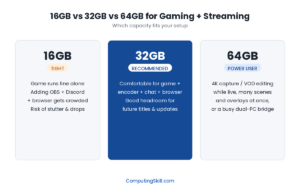
For gaming and streaming together, 32GB is the realistic sweet spot for the overwhelming majority of setups. 16GB can technically run both at once, but it leaves almost no margin once your game, OBS or Streamlabs, Discord, and a browser are all open together — you’re one extra Chrome tab away from your system reaching for slower swap space mid-stream. 64GB is only worth the extra cost if you’re doing heavier things alongside the stream itself, like simultaneous 4K capture, VOD editing while live, or running several scenes and overlay sources at once.
| RAM | Verdict for gaming + streaming | Best for |
|---|---|---|
| 16GB | Tight — workable in short bursts, risky for a full session | Casual, occasional streaming only |
| 32GB | Recommended — comfortable headroom for the whole stack | Regular streamers on a single PC |
| 64GB | Overkill for most, genuinely useful for a few | 4K capture, VOD editing live, heavy multi-scene setups |
Where Your RAM Actually Goes While You’re Live
It helps to see the workload broken into pieces instead of treating “gaming and streaming” as one vague blob of memory use. On a typical 32GB system, a rough split while gaming and streaming at the same time looks something like this: a few gigabytes for Windows and background services, a solid chunk for the game itself, a few more gigabytes for OBS or Streamlabs doing scene composition and frame buffering, and another slice for Discord plus a browser tab or two for chat and moderation tools. What’s left over is your actual headroom — the buffer that keeps everything smooth when a scene transition, a browser ad script, or a game’s asset-streaming spike all happen to land in the same second.
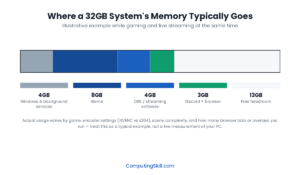
Two things push that split around in practice. First, the game itself: a competitive shooter with a simple, low-detail scene footprint uses noticeably less memory than an open-world game with a huge asset streaming budget. Second, your encoder: software encoding (x264) leans more on the CPU and general system memory, while hardware encoding (NVENC on Nvidia GPUs, or the equivalent on AMD and Intel) offloads the heavy lifting to the GPU’s own encoder chip and is comparatively lighter on system RAM — one more reason hardware encoding is the default recommendation for anyone streaming from a single PC.
Is 16GB Enough to Game and Stream at the Same Time?
Technically, yes — Windows will run, the game will launch, and OBS will start streaming on 16GB. Where it falls apart is consistency. With the game, encoder, Discord, and a browser all open together, 16GB gives you very little slack, and the moment one of those pieces spikes — a scene change, a Discord screen-share, an autoplay video in a background tab — the system has nowhere to put the overflow except slower swap space on your storage drive. That’s when streamers see the two most common symptoms of a RAM-starved stream: the game itself stutters, or the stream output drops frames and looks choppy to viewers even though your internet connection is fine. If you’re only streaming occasionally and keep everything else closed while you do it, 16GB can get you through a session. For anything more regular, it’s a bottleneck waiting to happen rather than a real solution — worth cross-checking with the PC Bottleneck Calculator if you’re also unsure whether your CPU or GPU is the limiting factor before you spend money on RAM.
32GB: The Real Sweet Spot for Streamers
32GB is where the combined workload stops fighting itself. The game gets the memory it wants, the encoder has room to buffer frames without pressure, and Discord plus a browser tab for chat and alerts no longer eat into anything essential. It also buys you something less obvious but just as important: headroom for the future. Games generally ask for more memory over time, not less, and having slack today means you’re not the person re-evaluating their RAM six months after a system-hungry title update. For the specific hardware you’re running or planning to buy, the RAM Calculator will factor in your actual use case and multitasking habits rather than a flat number, and it’s worth running before you commit to a kit.
When 64GB Actually Makes Sense
64GB is genuinely overkill for “just” gaming and streaming in the traditional sense — game, encoder, Discord, browser. Where it earns its cost is when you stack extra work on top of that core loop: recording a separate high-bitrate local capture for later editing while you’re live, running several scenes with multiple overlay sources and browser-source widgets simultaneously, or bridging a two-PC streaming setup where one machine is also doing capture-card processing and encoding for the other. If any of that sounds like your actual setup rather than a “just in case,” 64GB is a reasonable target. If it doesn’t, that budget is usually better spent on the GPU or CPU driving your game and encode in the first place — the PC Build Cost Calculator is a useful way to see how that trade-off plays out across a full parts list before you decide.
One PC or Two? It Changes the Math
Everything above assumes a single-PC streaming setup, which is how most people start and how the vast majority of streamers stay, because a well-specced single machine handles gaming and streaming together without needing a second box. A two-PC setup — one machine purely for gaming, a second dedicated to running the encoder, scenes, and chat — takes real pressure off the gaming PC’s RAM and CPU, since it no longer has to share resources with OBS at all. It’s a legitimate option for very demanding, high-production streams, but it’s also a meaningfully bigger investment for most people than simply buying enough RAM and using hardware encoding on one well-built PC. For the majority of streamers, getting a single PC to 32GB with a capable GPU handling hardware encoding solves the same problem for a fraction of the cost.
Does RAM Speed or DDR4 vs DDR5 Matter Here?
Capacity matters more than speed for this specific workload — having enough GB that nothing is starved beats a faster kit at a smaller size. That said, running a matched dual-channel kit (two sticks instead of one) does meaningfully help, because it gives the memory controller two paths to fetch data at once, which benefits both the game and the encoder pulling data simultaneously. As for platform generation, DDR5 offers more bandwidth than DDR4 and is worth choosing on a new build, but it’s a secondary decision to get right after capacity — see our full DDR4 vs DDR5 comparison if you’re deciding between platforms rather than just sizing a kit.
How to Check Your Own Setup
Rather than sizing your RAM off someone else’s example, run your own use case: start with the RAM Calculator and select streaming as your main use case alongside how many background apps and browser tabs you typically keep open. If you’re also unsure whether your current CPU and GPU can handle gaming and encoding together without one of them becoming the limiting factor, the PC Bottleneck Calculator will tell you which component to prioritize first. And if you’re planning a RAM upgrade on an existing system rather than a new build, the PC Upgrade Calculator helps you weigh whether more memory or a different component gives you the bigger real-world improvement for the money. For background on RAM itself — what it does and how capacity relates to speed and channels — see our RAM hardware guide, and for a broader look at sizing memory outside the streaming-specific case, our general How Much RAM Do I Need? guide covers gaming, content creation, and development workloads too.
Key Takeaways
- 32GB is the realistic recommendation for gaming and streaming together on a single PC — 16GB is workable but leaves little safety margin.
- Most of the extra memory pressure comes from running the game, encoder, Discord, and a browser all at once, not from any single piece being unusually heavy on its own.
- Hardware encoding (NVENC or equivalent) is lighter on system RAM than software encoding (x264), since it offloads work to the GPU.
- 64GB only pays off if you’re doing more than the core loop — simultaneous local capture, many overlay sources, or a two-PC bridge setup.
- Dual-channel RAM (two matched sticks) helps this workload more than raw speed does; prioritize getting to your target capacity first.
Frequently Asked Questions
Is 16GB of RAM enough to stream and game at the same time?
It can work for occasional, short streaming sessions if you keep other apps closed, but it leaves very little margin once you add a game, OBS or Streamlabs, Discord, and a browser together. For regular streaming, 32GB is the safer and more consistent choice.
Does live streaming use more RAM than just gaming?
Yes. Streaming adds the encoder, scene composition, and usually a chat client and browser on top of the game’s own memory use, so the combined workload needs meaningfully more headroom than gaming by itself.
Does NVENC use less RAM than x264 for streaming?
Hardware encoding options like NVENC offload the encoding work to the GPU’s dedicated encoder chip, which is generally lighter on system RAM and CPU than software encoding with x264. This is one reason hardware encoding is the common recommendation for single-PC streaming setups.
Do I need a second PC to stream without RAM problems?
No — a single well-specced PC with around 32GB of RAM and a GPU capable of hardware encoding handles gaming and streaming together for the large majority of streamers. A second PC removes shared resource pressure entirely, but it’s a bigger investment that’s mainly worth it for heavier, more demanding production setups.
Is 64GB of RAM worth it just for streaming?
Usually not for streaming alone. 64GB becomes worthwhile when you’re also doing extra work at the same time, such as recording a separate high-bitrate capture for editing later, running many overlay sources and scenes, or bridging a two-PC setup — not for the core game-plus-encoder workload by itself.
Does RAM speed matter more than capacity for streaming?
Capacity matters more. Having enough GB that the game, encoder, and background apps aren’t starved makes a bigger difference than a faster kit at a smaller size. Running a matched dual-channel kit is worth prioritizing after you’ve hit your target capacity.