Quick answer
A CPU bottleneck happens when the CPU cannot prepare frames fast enough to keep the GPU busy, showing up as GPU usage well below 100% (often 70-95% or lower) alongside high CPU usage on one or more cores, and a frame rate that will not climb even at lower resolution or settings. It is most common at 1080p with a fast GPU or in CPU-heavy games.
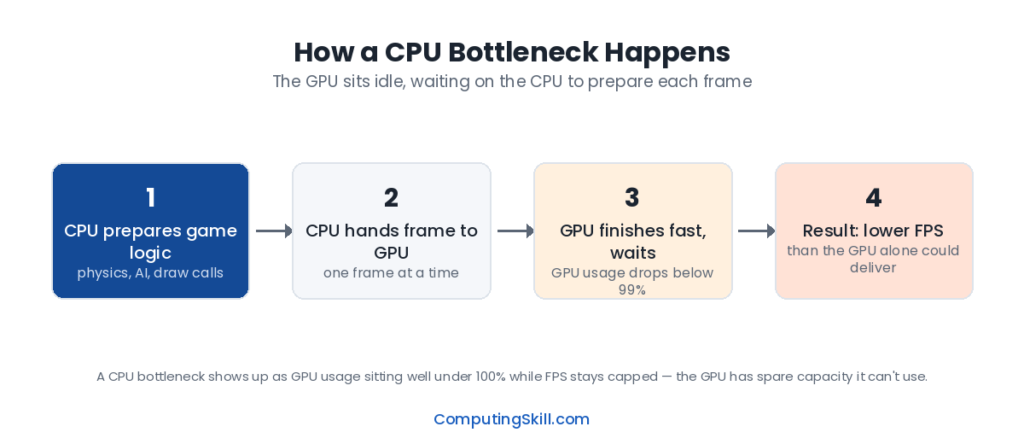
If your GPU usage sits well below 100% while your frame rate refuses to climb, you’re probably looking at a CPU bottleneck. It’s one of the most misunderstood concepts in PC building, partly because “bottleneck” gets used loosely to mean “something is slow” when it actually describes a specific relationship between two components. This guide explains what a CPU bottleneck actually is, why it happens, and how to tell it apart from a GPU bottleneck so you know which part of your system actually needs the upgrade.
What a CPU Bottleneck Actually Means
Every frame your PC renders starts on the CPU. The processor runs the game’s logic, calculates AI behavior, physics, and world state, and then packages up a list of draw calls and instructions for the GPU to render. Only after the CPU finishes that work can the GPU start drawing the frame. This handoff happens dozens or hundreds of times per second, and each side has to wait its turn.
A CPU bottleneck happens when the CPU can’t prepare frames fast enough to keep the GPU busy. The GPU finishes rendering its current frame and then sits idle, waiting for the CPU to hand it the next batch of instructions. You’ll see this in monitoring software as low GPU utilization (often 70-95% or even lower) paired with high CPU utilization on one or more cores, and a frame rate that won’t increase even if you lower your resolution or graphics settings further.
This is different from the CPU simply being “slow” in some absolute sense. A CPU that’s perfectly adequate for one game at one resolution can become the limiting factor in a different game, or the same game at a lower resolution, because the balance of work between CPU and GPU shifts.
Why Low Resolution Makes CPU Bottlenecks More Likely
This is the part that trips people up: lowering your resolution can make a CPU bottleneck worse, not better, in terms of how much it limits your frame rate. Here’s why. The CPU’s workload per frame — game logic, physics, AI, draw call preparation — stays roughly the same regardless of resolution. The GPU’s workload, on the other hand, scales directly with pixel count. Drop from 4K to 1080p and the GPU has roughly a quarter as many pixels to shade, so it finishes each frame much faster.
That means at low resolution the GPU can theoretically produce frames very quickly, but the CPU can only feed it new instructions at a fixed rate. The GPU ends up waiting on the CPU far more often. This is exactly why competitive shooter players running high-refresh 1080p monitors care so much about CPU and single-core performance — at 1080p with everything else turned down, the CPU is almost always the limiting factor for how high the frame rate can go.
Conversely, at 4K with maxed-out settings, the GPU workload becomes so heavy that it becomes the limiting factor even on a strong CPU — which is the mirror-image GPU bottleneck scenario.
Common Causes of CPU Bottlenecks
- Weak single-core or low-core-count CPU paired with a mid-range or high-end GPU. Many game engines still depend heavily on a small number of fast cores for the main game thread, so raw core count doesn’t always solve this.
- Playing at low resolution with a high-refresh-rate monitor, such as a 1080p 240Hz display, where the GPU can theoretically render far more frames than the CPU can supply instructions for.
- CPU-heavy games — large open-world titles with lots of NPCs, simulation-heavy strategy games, and physics-dense titles put unusually high demand on the CPU regardless of resolution.
- Background processes and overhead — an overloaded CPU from background applications, overlays, or an older platform with slower memory can add to an existing bottleneck.
- Older CPU generations paired with a newer, more efficient GPU — pairing a several-generations-old processor with a brand-new graphics card is one of the most common ways people accidentally create a CPU bottleneck.
How to Identify a CPU Bottleneck
The most reliable method is to monitor both CPU and GPU usage while gaming, using something like the in-game performance overlay many platforms provide, or third-party monitoring tools. The pattern to look for is consistent: GPU usage noticeably below 99-100%, at least one CPU core pegged near its limit, and a frame rate that doesn’t improve when you lower resolution or settings further.
A simpler diagnostic, if you don’t want to dig into monitoring software, is the resolution test: lower your resolution significantly (for example from 1440p down to 1080p) with everything else unchanged. If your frame rate barely moves, the GPU was never the limiting factor to begin with — the CPU was capping your performance the whole time. If frame rate jumps substantially when you lower resolution, the GPU was the bottleneck at the higher resolution.
For a faster, more structured way to check this without manually toggling settings and watching monitors, the PC Bottleneck Calculator compares your specific CPU and GPU pairing and estimates which component is more likely to be limiting your performance at a given resolution. Its CPU bottleneck percentage is the same signal seen from the other side: it estimates the share of the GPU left idle, so a 20% CPU bottleneck corresponds to GPU usage of roughly 80%. When the GPU is the limit (usage near 100%), the calculator calls the result GPU-limited, which is normal, and shows the CPU’s spare headroom instead. The CPU vs GPU Calculator goes further and lets you weigh two specific components directly against each other to see how balanced (or mismatched) they are for the resolution and use case you care about.
CPU Bottleneck vs. GPU Bottleneck
The two are mirror images of each other, and the same diagnostic signals just point in opposite directions:
- CPU bottleneck: GPU usage is noticeably below 100%, CPU usage on key cores is high, and lowering resolution doesn’t meaningfully raise frame rate. Most common at 1080p or lower with a fast GPU.
- GPU bottleneck: GPU usage sits at or near 100%, CPU usage has headroom, and lowering resolution or settings does raise frame rate noticeably. Most common at 1440p or 4K, or with maxed-out graphics settings.
Neither one is inherently “bad.” In fact, a mild GPU bottleneck at high settings is often exactly what you want, because it means your graphics card — the component usually doing the heavy lifting for visual quality — is being used to its fullest while the CPU has room to spare for background tasks, streaming, or future game updates. A severe CPU bottleneck is more often the frustrating case, because it means you’ve paid for GPU performance you can’t actually use.
Example Scenario
Consider a PC built around a Ryzen 5 5600 paired with an RTX 4070. On paper, that GPU is well above what a mid-range six-core CPU from the same era was designed to feed at high frame rates. At 4K with settings maxed out, this pairing works fine — the GPU is doing so much per-frame work that it’s the limiting factor, and the CPU keeps up easily.
Drop that same system to 1080p in a fast-paced, CPU-heavy game, and the picture changes. The GPU could render 200+ frames per second at that resolution, but the CPU can’t prepare game logic and draw calls quickly enough to keep it fed. GPU usage might sit around 60-75%, CPU usage on the main thread stays near 100%, and frame rate plateaus well below what the GPU is theoretically capable of. That’s a textbook CPU bottleneck, and no amount of lowering graphics settings further will fix it — the only real fixes are a faster CPU, faster memory, or accepting the frame-rate ceiling the CPU imposes at that resolution.
How to Fix a CPU Bottleneck
If monitoring or the calculator confirms a CPU bottleneck, a few things actually help: upgrading to a CPU with higher single-core performance (often more impactful than adding cores for gaming), making sure your RAM is running at its rated speed rather than a slower default, closing background applications that compete for CPU time, and in some games, reducing settings that specifically load the CPU (draw distance, NPC density, physics simulation detail) rather than purely GPU-bound settings like shadow resolution or anti-aliasing. For a broader walkthrough of tuning your whole system, see How to Improve FPS on Your PC.
Frequently Asked Questions
Can a CPU bottleneck lower my FPS even at 4K?
It’s less common but possible, especially in CPU-heavy games like large-scale strategy titles or simulation-heavy open worlds. At 4K the GPU workload is usually the dominant factor, but a genuinely weak or outdated CPU can still cap frame rate even at high resolutions if the game itself leans heavily on CPU performance.
Does upgrading my GPU help if I have a CPU bottleneck?
Not much, and sometimes not at all. If the CPU is already the limiting factor, a faster GPU just means more idle time waiting for the CPU, since the CPU still can’t feed it instructions any faster. You’d see little to no frame rate improvement until the CPU itself is upgraded.
Is a CPU bottleneck always a problem?
No. A mild CPU bottleneck at very high frame rates (say, capping out around 200+ FPS instead of 250+ FPS) is rarely noticeable and isn’t worth chasing for most players. It only becomes a real problem when it caps your frame rate well below what your monitor or gameplay needs — for example, capping at 90 FPS on a 144Hz monitor.
Does more RAM fix a CPU bottleneck?
More RAM capacity generally doesn’t help a CPU bottleneck, but faster RAM speed and tighter timings can, since the CPU relies on memory bandwidth to feed its cores quickly. If you’re RAM-starved (not enough capacity, causing swapping), that’s a separate issue from a CPU bottleneck and shows up differently.
Why does my GPU usage drop when I lower resolution?
Because the GPU’s workload scales with pixel count, so at a lower resolution it finishes each frame faster and more often has to wait for the CPU to supply the next batch of instructions. Falling GPU usage as you lower resolution is one of the clearest signs of a CPU-limited system.