
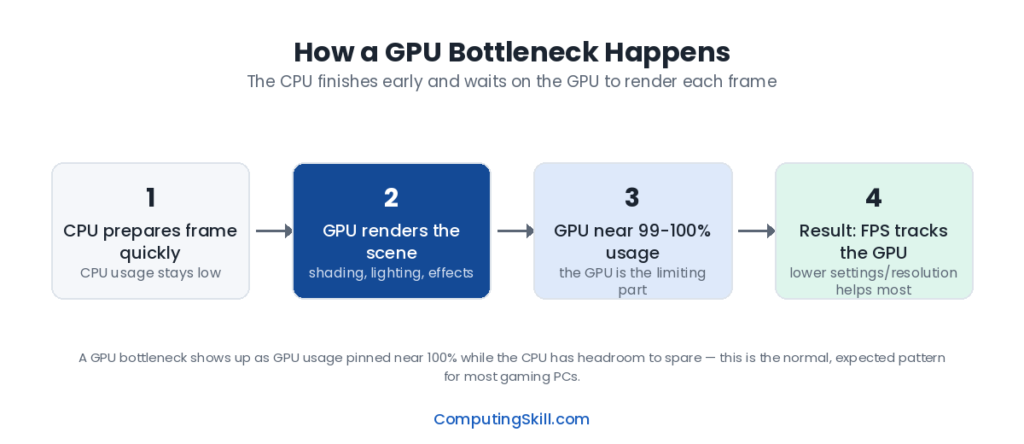
If your GPU usage is pinned near 100% while your CPU has plenty of headroom to spare, and lowering your resolution or graphics settings noticeably raises your frame rate, you’re dealing with a GPU bottleneck. It’s the more familiar of the two bottleneck types to most PC gamers, since “my graphics card can’t keep up” is an intuitive idea — but the specifics of when and why it happens are worth understanding properly, especially before spending money on an upgrade. This guide covers what a GPU bottleneck is, why it’s more common at high resolutions and settings, and how to distinguish it from a CPU bottleneck.
What a GPU Bottleneck Actually Means
In every rendered frame, the CPU first prepares game logic, physics, and draw call instructions, then hands that work off to the GPU, which actually renders the pixels. A GPU bottleneck happens when the GPU takes longer to render each frame than the CPU takes to prepare it. The CPU finishes its work and sits waiting, while the GPU grinds through shading, lighting, and post-processing work at its own pace.
The telltale signs are the mirror image of a CPU bottleneck: GPU usage sitting at or very near 100%, CPU usage with clear headroom on most cores, and a frame rate that rises noticeably when you reduce resolution or lower graphics settings. If turning your resolution down from 4K to 1440p, or turning down settings like shadow quality, ray tracing, or anti-aliasing, gives you a real frame rate boost, that confirms the GPU — not the CPU — was the limiting factor.
Why High Resolution and High Settings Trigger GPU Bottlenecks
A GPU’s workload scales directly with how many pixels it has to shade and how complex the effects applied to each pixel are. Moving from 1080p to 1440p roughly increases pixel count by around 1.8x, and moving to 4K roughly quadruples it versus 1080p. Every one of those pixels needs lighting, texture, and shader calculations applied, so the GPU’s render time per frame grows substantially with resolution even though the CPU’s per-frame workload barely changes.
Stack demanding settings on top of that — ray tracing, high anti-aliasing levels, ultra shadow and texture settings, dense post-processing effects — and the GPU’s share of the total per-frame workload grows even further relative to the CPU’s. This is exactly why GPU bottlenecks are the norm, not the exception, at 4K and in visually demanding games with settings maxed out: the GPU simply has an enormous amount of pixel-level work to do, and the CPU is comparatively idle waiting on it.
Common Causes of GPU Bottlenecks
- High resolution relative to GPU tier — running 4K on a GPU built for 1080p or 1440p workloads will almost always leave the GPU as the limiting factor.
- Demanding graphics settings — ray tracing, high or ultra presets, high levels of anti-aliasing, and dense post-processing effects add heavy per-pixel work regardless of CPU strength.
- Aging or lower-tier GPU paired with a capable CPU — a strong CPU can prepare frames far faster than an older or budget GPU can render them, leaving the GPU as the clear constraint.
- Insufficient VRAM — when a GPU runs out of onboard video memory for high-resolution textures, it has to fall back to slower system memory, which behaves like a severe GPU-side bottleneck even if the core itself isn’t fully the issue. The GPU VRAM Calculator can help you check whether your card has enough VRAM for the resolution and settings you’re targeting.
- Demanding game engines — titles with heavy ray tracing, dense geometry, or advanced lighting systems push GPU rendering time up regardless of how fast the CPU is.
How to Identify a GPU Bottleneck
The most direct method is real-time monitoring: watch GPU usage and CPU usage together while gaming. A GPU sitting consistently at or near 100% utilization, paired with CPU cores that have clear room to spare, is the classic signature of a GPU-limited system.
If you’d rather not dig through overlays and monitoring software, the settings test works well: lower your resolution or drop a few demanding settings (ray tracing, shadow quality, anti-aliasing) and watch what happens to frame rate. If frame rate rises meaningfully, the GPU was the limiting factor at the higher settings. If frame rate barely moves, the CPU — not the GPU — was capping your performance the whole time, which points to a CPU bottleneck instead.
For a quicker way to sanity-check a specific CPU and GPU pairing without manually testing settings, the PC Bottleneck Calculator estimates which component is likely to be the limiting factor for your hardware at a given resolution, so you know where an upgrade would actually help before you buy one.
GPU Bottleneck vs. CPU Bottleneck
Both describe the same underlying idea — one component finishing its work faster than the other and having to wait — just with the roles reversed:
- GPU bottleneck: GPU usage near 100%, CPU has headroom, and lowering resolution or settings raises frame rate. Most common at 1440p and 4K, or with demanding settings enabled.
- CPU bottleneck: GPU usage below 100%, at least one CPU core near its limit, and lowering resolution or settings does little to frame rate. Most common at 1080p with a fast GPU, or in CPU-heavy games.
A GPU bottleneck is often the healthier outcome of the two, in the sense that it means your most expensive component is being fully utilized and your investment isn’t going to waste. Chasing a GPU bottleneck away entirely — to the point where the GPU is never the limit — usually means either lowering visual quality more than you’d like, or buying more GPU than your use case needs.
Example Scenario
Take a system with a Ryzen 7 7700X and an RTX 4070. At 1080p with settings on medium, this CPU can feed the GPU instructions extremely quickly, and the GPU tears through frames fast enough that it might actually be waiting on the CPU at times — no clear GPU bottleneck yet.
Push that same system to 4K with settings maxed and ray tracing enabled, and the picture flips. The GPU now has roughly four times the pixels to shade per frame compared to 1080p, plus the extra overhead of ray-traced lighting calculations. GPU usage climbs to a steady 99-100%, while the CPU — still only preparing the same relatively light amount of per-frame logic — sits comfortably under its limit. Frame rate is now dictated almost entirely by how fast the GPU can churn through each frame, and lowering resolution back down would immediately show a jump in frame rate, confirming the GPU was the bottleneck at 4K.
What to Do About a GPU Bottleneck
If you’ve confirmed a GPU bottleneck, the fixes are fairly direct: lower resolution or graphics settings (particularly the most GPU-intensive ones like ray tracing, shadow resolution, and anti-aliasing), enable an upscaling technology if the game supports one, make sure the GPU has adequate VRAM for your target settings, or upgrade to a more capable GPU for your resolution tier. Unlike a CPU bottleneck, a GPU bottleneck usually responds well and predictably to setting changes, since you’re directly reducing the per-pixel work the GPU has to do. For broader tuning advice across your whole system, see How to Improve FPS on Your PC.
Frequently Asked Questions
Is a GPU bottleneck a bad thing?
Not inherently. A mild GPU bottleneck at high settings usually means your graphics card is being fully utilized, which is exactly what you want from the most expensive component in most gaming builds. It only becomes a problem when frame rate drops below what you need for smooth gameplay.
Will a faster CPU fix a GPU bottleneck?
No. If the GPU is already the limiting factor, a faster CPU just means the CPU finishes its work even sooner and waits even longer for the GPU — it won’t raise your frame rate, since the GPU still needs the same amount of time to render each frame.
Why does lowering resolution fix a GPU bottleneck?
Because GPU workload scales directly with pixel count. Fewer pixels means less shading, lighting, and post-processing work per frame, so the GPU can render each frame faster and catch up to (or exceed) what the CPU can supply.
Can low VRAM cause a GPU bottleneck even on a powerful GPU?
Yes. If a game’s textures and assets at your chosen resolution and settings exceed the GPU’s VRAM capacity, the system has to fall back to slower memory paths, causing stutters and frame drops that look and feel like a severe GPU bottleneck even if the GPU’s core processing power would otherwise be sufficient.
Does ray tracing make GPU bottlenecks more likely?
Yes, significantly. Ray tracing adds substantial per-pixel lighting calculation work on top of standard rendering, which increases GPU render time per frame without adding meaningful CPU workload, making a GPU bottleneck more likely and often more pronounced when ray tracing is enabled.