
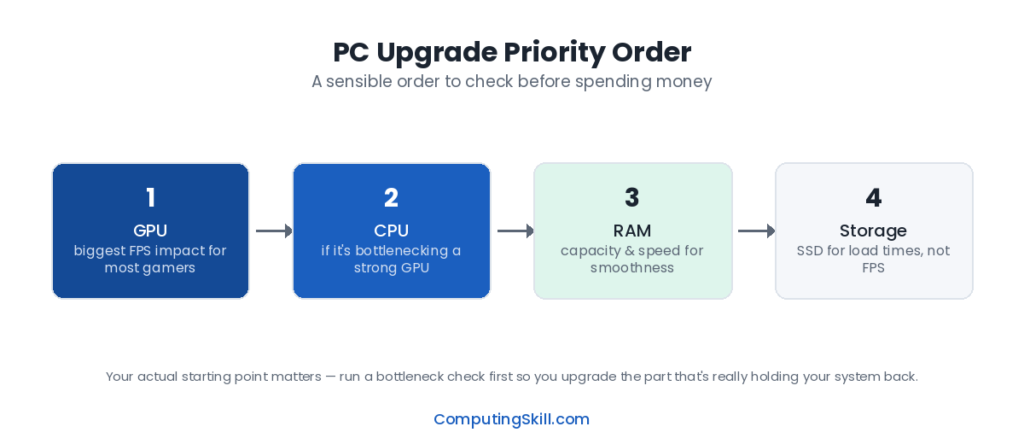
Upgrading a gaming PC goes wrong most often not because someone bought a bad part, but because they bought the wrong part for what was actually holding their system back — or bought a part their existing hardware couldn’t support in the first place. This guide walks through a practical decision framework: how to diagnose what’s actually limiting your performance, what order to upgrade components in, and the compatibility checks to run before you buy anything.
Step 1: Diagnose What’s Actually Limiting Your Performance
Before spending anything, figure out which component is the bottleneck. Upgrading the wrong part is the single most common upgrade mistake — it’s easy to assume the GPU is always the answer, but a weak CPU, insufficient RAM, or a full storage drive can just as easily be the actual limiter.
- Low, unstable frame rates that don’t change much with graphics settings: This pattern often points to a CPU bottleneck — if lowering graphics settings (which mainly reduces GPU workload) doesn’t meaningfully raise your frame rate, your CPU is likely the limiting factor rather than your GPU.
- Frame rate that scales clearly with graphics settings: This points to a GPU bottleneck — your GPU is the limiting factor, and either lowering settings or upgrading the GPU will have a direct, visible effect.
- Stuttering, texture pop-in, or sudden frame drops rather than a smooth but lower frame rate: This pattern often points to insufficient VRAM or system RAM rather than a raw core-performance bottleneck in either the CPU or GPU.
- Long load times, or a system that feels sluggish outside of games too: This points toward storage — an aging or full drive, especially a mechanical HDD or a nearly-full SSD, can drag down general responsiveness independent of CPU or GPU performance.
Run your specific CPU and GPU pairing through the PC Bottleneck Calculator to get a clearer read on which component is actually holding the other back, and use the CPU vs GPU Calculator to compare the two directly.
Step 2: The Practical Upgrade Order
Once you know what’s limiting you, upgrade order matters because some components affect the ceiling for everything downstream of them.
- Storage, if you’re on a mechanical HDD or a nearly-full SSD. This is often the cheapest upgrade with the most noticeable everyday impact on responsiveness, load times, and boot time, and it rarely requires anything else to change alongside it.
- RAM, if you’re below 16GB or frequently run out under your actual workload. Also cheap relative to CPU/GPU upgrades, and it removes a bottleneck that would otherwise undercut any CPU or GPU upgrade you make later.
- GPU, if diagnosis points to a GPU bottleneck and your CPU has enough headroom to support a faster card. This is usually the biggest single frame rate improvement for the money in a GPU-bound system, but check Step 3 below before assuming your current CPU won’t hold the new GPU back.
- CPU (and likely motherboard and RAM alongside it), if diagnosis points to a CPU bottleneck. This is the most expensive and most disruptive upgrade, because a CPU upgrade frequently means a new socket, which cascades into a new motherboard and sometimes new RAM. Confirm this is really necessary before committing to it.
- PSU, only when a component upgrade requires more wattage or a connector type your current unit doesn’t have. A PSU upgrade is rarely the goal on its own — it’s usually a prerequisite you check for before another upgrade rather than a performance upgrade by itself.
The logic behind this order: fix the cheap, low-risk bottlenecks (storage, RAM) first since they’re inexpensive and rarely wasted even if you upgrade further later, then address the GPU or CPU based on actual diagnosis, and treat the PSU as a compatibility check for other upgrades rather than a goal in itself.
Step 3: Compatibility Checks Before You Buy Anything
Every upgrade on the list above has its own compatibility question to answer before you spend money. Skipping this step is how people end up with a part that arrives and doesn’t fit or doesn’t work.
| Upgrading | Check Before Buying |
|---|---|
| Storage | Available drive bay or M.2 slot; motherboard M.2 generation (NVMe Gen3/Gen4/Gen5) support |
| RAM | DDR generation your motherboard supports (DDR4 vs DDR5 are not interchangeable); open slots; matching a kit rather than mismatched sticks |
| GPU | Physical length clearance in your case; PSU wattage and required connector type; whether your CPU will bottleneck the new card |
| CPU | Motherboard socket compatibility; whether a BIOS update is needed for a newer CPU on an older board; cooler compatibility with the socket |
| PSU | Wattage headroom for your full system; modular vs non-modular cable needs; connector types for your GPU and CPU |
The PC Compatibility Checker is built specifically to catch these mismatches before you order parts. It’s worth running any planned upgrade through it even when you’re fairly confident about the fit — socket, physical clearance, and connector mismatches are the most common reasons an upgrade doesn’t go as planned.
GPU Upgrades: The CPU Bottleneck Trap
A particularly common mistake is buying a significantly more powerful GPU to pair with an aging CPU, only to find the CPU can’t feed it enough frames to realize the upgrade’s potential — especially at 1080p, where CPU bottlenecks are more pronounced than at higher resolutions. Before buying a new GPU, check your current CPU against the card you’re considering using the CPU vs GPU Calculator or PC Bottleneck Calculator — if your CPU is the limiting factor, a CPU upgrade (or at minimum confirming your CPU can keep up) should come first or alongside the GPU purchase.
CPU Upgrades: The Socket and Platform Cascade
A CPU upgrade is the one most likely to cascade into additional purchases. If the new CPU uses a different socket than your current motherboard (for example, moving from AM4 to AM5, or upgrading beyond what an older LGA 1700 board’s BIOS supports), you’ll also need a new motherboard, and a new motherboard frequently means new RAM if it only supports a different generation (DDR5-only boards, for instance, won’t accept DDR4 sticks from an older build). Budget for the whole cascade, not just the CPU itself, before deciding this is the upgrade you want to make.
Step 4: Reassess After Each Upgrade
After making an upgrade, re-run your diagnosis rather than assuming the next upgrade on your original list is still the right one. Fixing one bottleneck often reveals the next limiting component, and it may not be the one you expected. A RAM upgrade might reveal that your GPU was actually fine all along and storage is now the most noticeable limitation, for example. Treat the upgrade order in Step 2 as a starting framework, not a fixed shopping list to complete regardless of what changes along the way.
Key Takeaways
- Diagnose the actual bottleneck before buying anything — don’t default to assuming the GPU is always the answer.
- Upgrade storage and RAM first when they’re clearly behind, since they’re cheap and rarely wasted.
- Check CPU/GPU balance before a GPU upgrade, and budget for the full platform cascade before a CPU upgrade.
- Run every planned upgrade through a compatibility check — socket, physical clearance, wattage, and connector type — before ordering parts.
- Reassess your bottleneck after each upgrade rather than sticking rigidly to your original plan.
Frequently Asked Questions
Should I upgrade my GPU or CPU first?
It depends on which one is actually limiting your frame rate. If lowering graphics settings barely changes your FPS, your CPU is likely the bottleneck; if FPS scales clearly with settings, the GPU is the limiting factor. Check your specific pairing with the PC Bottleneck Calculator before deciding.
How do I know if my CPU is bottlenecking my GPU?
A strong sign is frame rate staying roughly flat even as you lower graphics settings, since lowering settings mainly reduces GPU workload, not CPU workload. This effect is usually more pronounced at 1080p than at 1440p or 4K, since higher resolutions shift more of the workload onto the GPU.
Is it worth upgrading RAM before the GPU?
Yes, if you’re below 16GB or notice slowdowns from multitasking alongside gaming — it’s a cheap upgrade that removes a bottleneck that would otherwise undercut a GPU upgrade anyway. If you already have adequate RAM for your use case, a GPU upgrade will have more impact.
Will a new CPU require a new motherboard?
Only if the new CPU uses a different socket than your current motherboard, or if your current motherboard’s BIOS doesn’t support the new CPU. Check the CPU’s socket and your motherboard’s supported CPU list (and whether a BIOS update is needed) before buying.
Do I need a new PSU every time I upgrade my GPU?
Only if the new GPU’s wattage requirement exceeds your current PSU’s capacity or headroom, or if it needs a connector type your PSU doesn’t have. Check both before assuming you need a new power supply.