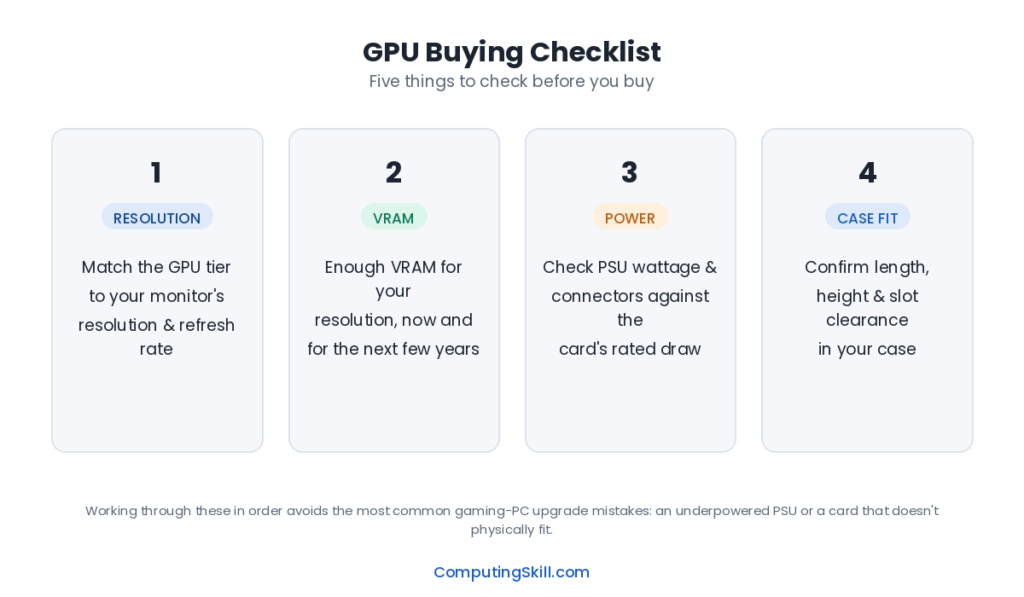
Choosing a gaming GPU means balancing several factors at once: what you can spend, what resolution and settings you actually want to play at, how much VRAM that requires, and whether your power supply and case can support the card. It’s easy to get pulled into brand debates instead, but the practical path to a good decision is to work through budget, resolution target, and requirements in order, then compare the AMD and NVIDIA options that fit — rather than picking a brand first and working backward.
If you want to know how a graphics card works first, start with What Is a GPU?.
Quick answer
Choose a GPU by working through budget tier, target resolution (entry cards for 1080p, mid-range for 1440p, high-end for 4K), VRAM needs for your settings, and PSU wattage and connector compatibility, in that order, rather than picking a brand first. Neither AMD nor NVIDIA is categorically better; compare specific cards on price, VRAM, and the features you value at current pricing.
Step 1: Set Your Budget Tier
GPU pricing roughly maps to three tiers, and knowing which tier you’re shopping in narrows the field immediately.
| Tier | Target Resolution | Example GPUs |
|---|---|---|
| Entry | 1080p | RTX 3060, RTX 4060, RX 6600, RX 7600 |
| Mid-range | 1440p | RTX 4070, RTX 4070 Super, RTX 5070, RX 7700 XT, RX 7800 XT |
| High-end / Flagship | 4K | RTX 4080, RTX 4090, RTX 5080, RTX 5090, RX 7900 XT, RX 7900 XTX |
A useful discipline here is deciding your budget for the whole system first, then allocating a realistic share to the GPU rather than the other way around. A GPU that outclasses the rest of your build (especially the CPU) wastes money on performance the rest of the system can’t deliver — see the PC Bottleneck Calculator to check a specific CPU/GPU pairing before you commit to a card.
Step 2: Match the Tier to Your Resolution Target
Resolution is the single biggest driver of how much GPU power you need, because pixel count scales the rendering workload directly. Pick your monitor’s resolution (or the resolution you’re planning to buy a monitor for) first, and let that decide which tier you’re shopping in — buying a flagship GPU for 1080p gaming, or an entry GPU hoping for smooth 4K, both waste money in opposite directions.
- 1080p: Entry-tier cards deliver strong, high-refresh-rate performance here without overspending.
- 1440p: Mid-range cards are purpose-built for this resolution and offer the best balance of price and performance for most gamers.
- 4K: For demanding modern games at high settings and high frame rates, higher-end GPUs are generally required for comfortable 4K performance.
If you’re unsure which resolution makes sense for your monitor size and viewing distance, our 1080p vs 1440p vs 4K comparison and the FPS Calculator are good starting points before you shop for a card.
Step 3: Check VRAM for Your Settings, Not Just Your Resolution
VRAM capacity should be checked against your intended settings and whether you plan to use ray tracing, not just your resolution alone. Two cards can target the same resolution tier while carrying meaningfully different VRAM capacities, and that difference becomes very visible in specific games rather than showing up as a smooth linear performance gap.
| Resolution | Recommended VRAM |
|---|---|
| 1080p | 8GB, 10GB+ with ray tracing |
| 1440p | 10-12GB |
| 4K | 16GB+, 20-24GB for ray tracing at max settings |
For a full breakdown of VRAM sizing with real GPU examples, see How Much VRAM Do I Need? and run your own scenario through the GPU VRAM Calculator.
Step 4: Check Power and PSU Requirements Before You Buy
A GPU’s TDP (thermal design power) tells you roughly how much power the card draws under load, and manufacturers publish a recommended minimum PSU wattage for each card that accounts for the rest of a typical system alongside it. Buying a GPU without checking this against your existing power supply — or your planned PSU purchase — is one of the most common and most avoidable build mistakes.
| Model | VRAM | Memory Bus | TDP | Recommended PSU |
|---|---|---|---|---|
| GeForce RTX 4060 | 8 GB GDDR6 | 128-bit | 115W | 550W+ |
| GeForce RTX 4070 | 12 GB GDDR6X | 192-bit | 200W | 650W+ |
| GeForce RTX 4080 | 16 GB GDDR6X | 256-bit | 320W | 750W+ |
| GeForce RTX 4090 | 24 GB GDDR6X | 384-bit | 450W | 850W+ |
| Radeon RX 7700 XT | 12 GB GDDR6 | 192-bit | 245W | 700W+ |
| Radeon RX 7900 XTX | 24 GB GDDR6 | 384-bit | 355W | 800W+ |
Sources: manufacturer specifications for GeForce RTX 4060, GeForce RTX 4070, GeForce RTX 4080, GeForce RTX 4090, Radeon RX 7700 XT, Radeon RX 7900 XTX.
Note how recommended PSU wattage climbs with TDP: an RTX 4060 at 115W recommends a 550W PSU, while an RTX 4090 at 450W recommends 850W. Also check the physical space in your case and the specific power connector the card requires — some current high-wattage GPUs use a newer 12VHPWR/12V-2×6-style connector that your existing PSU cables may not support natively, in which case you’ll need either a PSU with a native cable for that connector or the correct adapter supplied with the card. Confirm your total system draw with the PC Power Consumption Calculator and size the PSU itself with the PSU Calculator before finalizing a GPU purchase.
AMD vs NVIDIA: A Balanced Look
Both AMD and NVIDIA make competitive GPUs across every tier covered above, and neither brand is uniformly “better” — the right choice depends on what you value and which specific cards you’re comparing at a given price point.
- Raw rasterized performance per dollar: Both brands are genuinely competitive here, and the better value swings between them depending on the specific card generation and current pricing at the time you’re buying. Compare specific models rather than assuming a brand-wide advantage.
- Ray tracing performance: NVIDIA’s architecture has historically had an edge in ray tracing throughput at a given price tier, though the gap has narrowed with successive generations on both sides.
- VRAM at a given price point: AMD has frequently offered more VRAM at a comparable price point within a tier (for example, the RX 7800 XT’s 16GB compares favorably to similarly priced 12GB cards), which can matter for longevity even if it doesn’t change day-one performance.
- Upscaling technology: NVIDIA’s DLSS and AMD’s FSR both exist to boost frame rates by rendering at a lower internal resolution and upscaling. NVIDIA-specific technologies are generally limited to NVIDIA cards, while AMD’s FSR is broadly cross-vendor compatible, running on most modern GPUs from either brand.
- Driver software and extra features: Both companies ship mature driver suites with recording, streaming, and performance overlay tools. Preferences here are largely a matter of personal taste rather than a clear technical advantage for either side.
The practical takeaway: shortlist cards by tier, resolution, and VRAM first using the criteria above, then compare the specific AMD and NVIDIA options that clear that bar on their current pricing and the features that matter most to you, rather than deciding on brand loyalty before you’ve defined what you actually need.
Step 5: Sanity-Check the Whole Build
Once you have a shortlist, verify the GPU won’t be held back by (or won’t be wasted on) the rest of your system. A powerful GPU paired with a weak CPU can leave performance on the table in CPU-bound games, and an underpowered GPU paired with a high-refresh-rate monitor will leave frame rate on the table regardless of settings. Use the CPU vs GPU Calculator and PC Bottleneck Calculator to check the specific pairing you’re considering before you buy.
Key Takeaways
- Decide your budget tier and target resolution first — they narrow the field faster than brand preference.
- Check VRAM against your actual settings and ray tracing plans, not just your resolution.
- Confirm your PSU’s wattage and connector compatibility before buying a GPU with a high TDP.
- AMD and NVIDIA are both competitive across every tier; compare specific cards on price, VRAM, and the features you value rather than assuming one brand is categorically better.
- Check the GPU against your CPU and monitor before finalizing, so the card you buy is actually the bottleneck-free choice for your specific system.
Frequently Asked Questions
Is AMD or NVIDIA better for gaming?
Neither brand is categorically better — both make competitive GPUs across every price tier. The better choice depends on the specific cards you’re comparing at current pricing, how much you value ray tracing performance versus VRAM capacity, and which upscaling or software features matter to you.
How much should I spend on a GPU relative to the rest of my build?
There’s no fixed universal ratio, but a common approach is to decide your target resolution first, choose the GPU tier that matches it, and make sure the CPU and PSU you pair it with aren’t so far below that tier that they become the actual bottleneck.
Do I need a new PSU when I upgrade my GPU?
Only if your current PSU’s wattage or connectors don’t meet the new card’s requirements. Check the GPU’s recommended PSU wattage and required power connector against your existing power supply before assuming it will work as-is.
Is more VRAM always worth paying extra for?
It depends on your resolution and settings. Extra VRAM beyond what your resolution and settings actually use won’t improve performance today, but it can extend how long a card stays comfortable as future games increase their memory requirements.
Should I buy the newest GPU generation or a previous-generation card on sale?
A previous-generation card at a meaningfully discounted price can be excellent value if its specs (VRAM, TDP, performance tier) still match what you need. Compare the actual specs and price rather than assuming the newest generation is automatically the better buy.