
Low or unstable frame rates have two very different kinds of fixes: things you can change right now for free in software, and things that require actually upgrading a component. Mixing the two up wastes time and money — there’s no point buying a new GPU if a background app or a bad Windows power setting is the real problem, and there’s no amount of settings tweaking that will fix a genuine hardware bottleneck. This guide separates the two clearly so you can work through the free fixes first and know exactly when hardware is actually the answer.
Part 1: Software and Settings Fixes (Free, Do These First)
1. Update Your GPU Drivers
GPU manufacturers regularly release driver updates that include game-specific performance optimizations, and an outdated driver can leave real performance on the table in newer titles. Check your GPU manufacturer’s official driver download page directly rather than relying on Windows Update alone, which doesn’t always deliver the latest version promptly.
2. Adjust In-Game Graphics Settings With Purpose
Not all graphics settings cost the same amount of performance for the same amount of visual benefit. Working through settings with an understanding of what each one actually costs gets you much better results than blindly setting everything to low.
- Shadow quality and draw distance: Often among the most expensive settings for the visual difference they make. Lowering these one or two notches from maximum frequently recovers meaningful frame rate with a fairly small visual cost.
- Ray tracing: Adds substantial GPU workload and VRAM demand for a real but often subtle visual improvement in many titles. Disabling it is one of the single biggest frame rate recovery options available if you’re GPU-bound.
- Anti-aliasing: Smooths jagged edges but some methods (particularly heavier supersampling-based ones) are considerably more expensive than others (like standard temporal methods) for a similar visual result.
- Texture quality: Costs VRAM more than it costs raw frame rate on a card with adequate memory, so this is often one of the last settings worth lowering purely for FPS unless you’re specifically VRAM-limited.
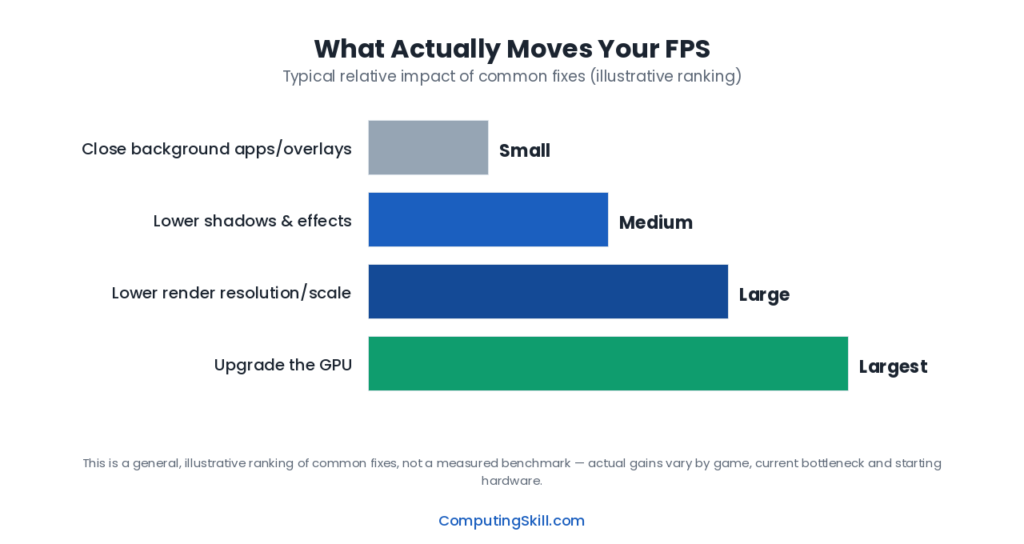
- Resolution scale / render resolution: The single biggest lever available, since it directly changes the pixel count the GPU has to render. Consider upscaling technology (DLSS/FSR) instead of dropping this manually, since it accomplishes a similar goal while the upscaler tries to preserve more perceived image quality.
Check how your specific settings choices translate into expected frame rate using the FPS Calculator.
3. Enable Upscaling (DLSS/FSR) If Your Game and GPU Support It
Upscaling renders the game internally at a lower resolution and uses an algorithm to reconstruct a sharper image at your display’s native resolution. This gives a substantial frame rate boost with a smaller visual quality cost than manually lowering render resolution, and it’s one of the highest-value free settings changes available in supported titles on a supported GPU.
4. Close Background Applications
Web browsers, recording software, chat overlays, and launcher clients all compete with your game for CPU time, RAM, and in some cases GPU resources. A browser with many tabs open, in particular, can be surprisingly demanding on both RAM and CPU. Close what you don’t need running during a gaming session, and check your system tray for background apps you may have forgotten were running.
5. Check Windows Power Settings
Windows’ power plan can silently cap CPU performance, especially on laptops or on a “Balanced” power plan that prioritizes efficiency over peak performance. Switching to a “High Performance” or “Best Performance” power plan (found in Windows’ power options) ensures your CPU isn’t throttling itself below its peak clock speeds during gaming. On laptops specifically, confirm you’re plugged in and not running on battery, and check that any manufacturer-specific performance mode is set appropriately.
6. Set Your GPU to Prefer Maximum Performance
Both NVIDIA and AMD driver control panels include a power management setting (often called “Prefer Maximum Performance” or similar) that keeps the GPU running at higher clocks proactively rather than ramping up reactively. This can help reduce stutter from clock speed transitions in some systems, particularly ones where the GPU’s default power management is more conservative.
7. Cap Your Frame Rate Intentionally
This sounds counterintuitive, but capping your frame rate a few frames below your monitor’s refresh rate (or below your GPU’s natural maximum) using in-game or driver-level frame rate limiters can actually reduce input latency and stutter compared to leaving it fully uncapped, especially if you’re not using a variable refresh rate display. This is more of a smoothness fix than a raw FPS fix, but it’s worth knowing about since “higher FPS” and “smoother-feeling FPS” aren’t always the same thing.
8. Keep Windows and Chipset Drivers Updated
Beyond GPU drivers specifically, keeping Windows updated and installing the correct chipset drivers for your motherboard ensures your CPU, RAM, and storage are all communicating efficiently. This is a lower-impact fix than the ones above, but it’s a reasonable box to check, particularly after a new Windows feature update.
Part 2: Hardware Fixes (When Software Settings Aren’t Enough)
If you’ve worked through the software fixes above and frame rate is still below where you want it, the limitation is likely a genuine hardware bottleneck. Diagnose which component before spending money — see our full How to Upgrade a Gaming PC guide for the complete diagnostic framework, summarized here:
- GPU-bound (frame rate scales clearly with graphics settings): A GPU upgrade is the direct fix. Check the GPU Performance Calculator and How to Choose a Gaming GPU to pick the right tier.
- CPU-bound (frame rate stays flat even as settings drop): A CPU upgrade is the direct fix, though it’s the most disruptive since it can cascade into a new motherboard and RAM. Use the CPU Performance Calculator to compare options.
- VRAM-limited (stutter and texture pop-in rather than a smooth but low frame rate): Either lower texture/ray tracing settings as a free fix, or upgrade to a GPU with more VRAM as a hardware fix — see How Much VRAM Do I Need?.
- RAM-limited (stutter that correlates with multitasking or background apps): Adding RAM is usually inexpensive relative to a CPU or GPU upgrade and directly addresses this. See How Much RAM Do I Need?.
- Thermal throttling (performance drops the longer you play): This points to inadequate cooling rather than insufficient raw hardware power. Check case airflow and CPU cooler adequacy with the PC Cooling Calculator before assuming you need faster hardware.
- Storage-related stutter (specifically during level loads or texture streaming, not general gameplay): An upgrade from a mechanical HDD to an SSD, or to a faster NVMe drive, can meaningfully help asset streaming stutter that isn’t really a CPU/GPU issue at all.
Before buying any component, confirm the exact pairing works with a quick check on the PC Compatibility Checker and re-verify your PSU can support a more power-hungry GPU with the PC Power Consumption Calculator.
Key Takeaways
- Work through free software fixes first: drivers, targeted settings changes, closing background apps, and correct Windows power settings.
- Ray tracing, shadow quality, and resolution scale are usually the most expensive settings for the frame rate they cost — prioritize adjusting these before others.
- Upscaling (DLSS/FSR) is often the single best free frame rate boost available in supported titles.
- If software fixes don’t close the gap, diagnose whether you’re GPU-bound, CPU-bound, VRAM-limited, RAM-limited, or thermally throttled before buying hardware.
- Match the hardware fix to the actual diagnosis — an upgrade that doesn’t address your real bottleneck won’t move your frame rate much.
Frequently Asked Questions
What's the single easiest way to improve FPS for free?
Enabling upscaling technology (DLSS or FSR) in a supported game is usually the biggest free frame rate gain available, since it renders internally at a lower resolution while trying to preserve visual quality. Updating GPU drivers and closing background apps are also quick, easy checks.
Does closing background apps really make a noticeable difference?
It can, especially if you have a browser with many tabs open, recording software running, or multiple launcher clients active at once. The effect is more noticeable on systems with less RAM or a less powerful CPU, where background apps compete more directly with the game for resources.
Why does my FPS stay the same no matter what settings I change?
This is a classic sign of a CPU bottleneck rather than a GPU bottleneck, since most graphics settings primarily affect GPU workload, not CPU workload. Check your CPU and GPU pairing with the PC Bottleneck Calculator to confirm.
Is it better to lower resolution or lower settings for more FPS?
Lowering render resolution (or using upscaling) typically gives the biggest FPS gain since it directly reduces the number of pixels the GPU renders. Lowering individual settings like shadows or ray tracing can recover significant FPS too, often with less visible quality loss for the frame rate gained.
Can bad cooling actually lower my FPS?
Yes. If your CPU or GPU is thermal throttling, it will reduce its own clock speed to stay within safe temperatures, which directly lowers performance — often noticeably during longer gaming sessions rather than at the very start. Check case airflow and cooler adequacy if you notice performance dropping over time.
Will upgrading my RAM improve my FPS?
Only if RAM is actually your bottleneck — for example, if you’re below 16GB or run several memory-heavy background apps alongside your game. If you already have adequate RAM for your workload, adding more generally won’t increase FPS further.